
Microsoft OneDrive allows you to save your files on the cloud rather than the hard disk in your laptop. This has several advantages:
- No risk of losing your files if your laptop gets damaged
- Can access your files from several different devices such as other laptops, tablets or phones. This can be done by downloading the OneDrive app on your device or going to office.com on your web browser.
- Can share files rather than attaching them. This is handy when collaborating with other students and you want to edit the same file. You can also create a URL for your file which you can attach to your work. This is useful when the file is large or when emails block attachments.
Install OneDrive Client on a computer on Windows
Microsoft Windows 10 and 11 include the OneDrive client pre-installed. Open the Settings app and check your Windows Update settings to ensure you have the latest version.
Install OneDrive Client on a computer on Mac
Microsoft offer the Mac OneDrive Client in Apple’s Mac App Store.
Install the Microsoft OneDrive app for Mac:
- Download the OneDrive for Mac installer from Microsoft.
- Open the PKG installer from your Downloads folder.
- Follow the instructions in the installer, entering your admin password when prompted.
The OneDrive app is installed into your Applications folder.
Sign into OneDrive Client on a computer
- Open the OneDrive client.
On Windows, it appears in your Start menu. On Mac, it’s installed in your Applications folder. - If this is the first time you’re using OneDrive, the Add Account screen will start automatically. If you’re already using OneDrive with a personal email account. go to the Settings and click Add an Account.
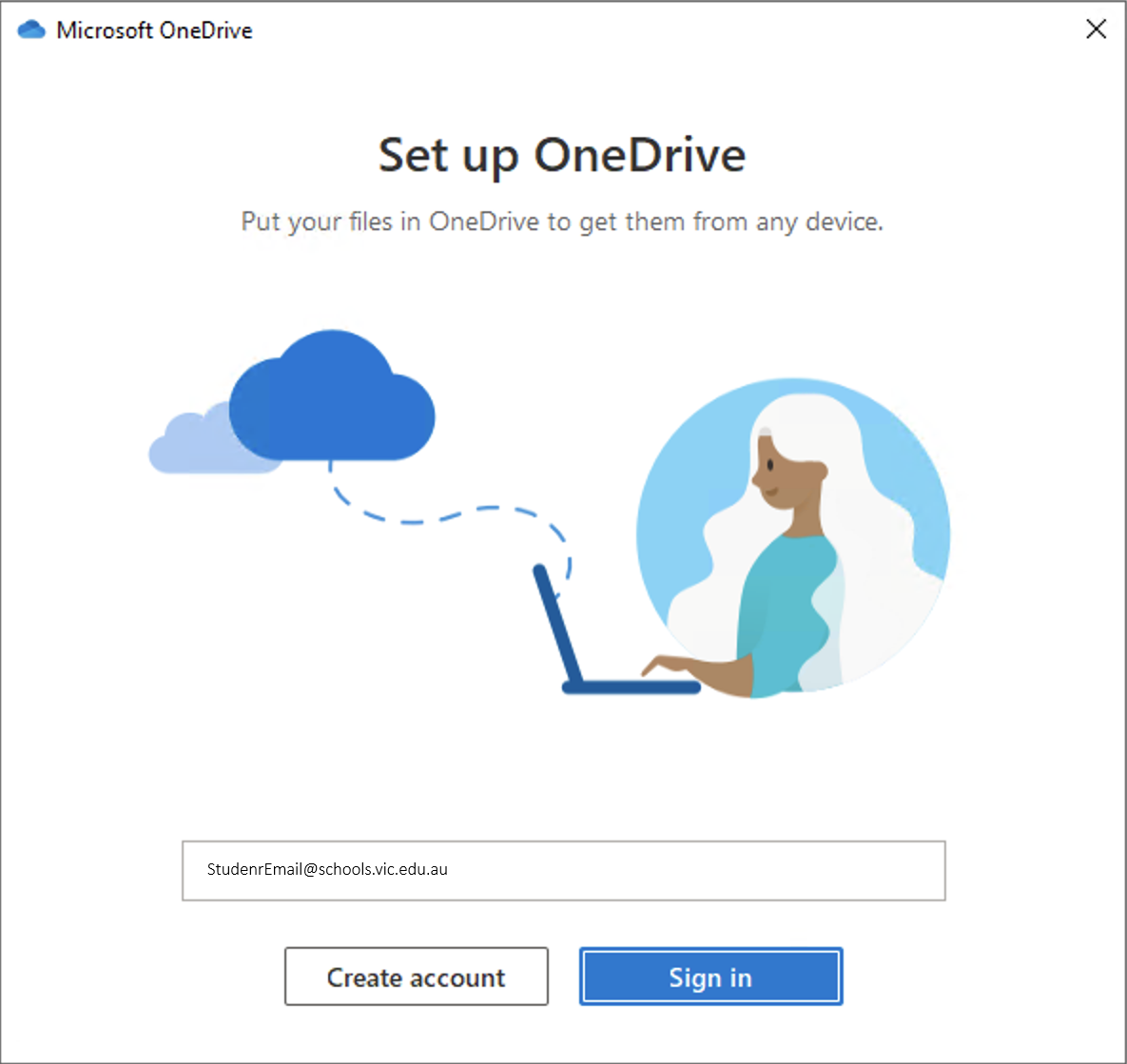
- Enter your School email address and password
- Complete the OneDrive setup wizard

Accessing Microsoft OneDrive online
As well as using Microsoft 365 apps locally on your computer, you can access a web version of the suite. To access OneDrive online:
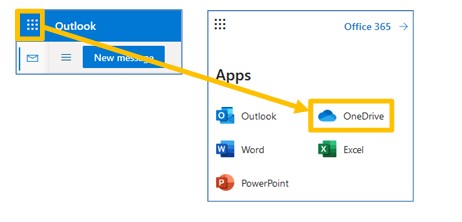
1. Open your DoE student email. There is also a link on the SIDE website under the Quicklinks tab.
2. Use the waffle menu in the top left-hand corner to view your Microsoft Apps.
3. Click onto OneDrive
:
Uploading work to your OneDrive
- Once you have created a document or media item (Word, PowerPoint, Video, Audio, etc…), you can upload it to your DoE OneDrive. To do this:
- Open your web version of OneDrive as outlined above.
- Hover your mouse over the Upload button and click either files or folder*, depending on what you wish to upload:
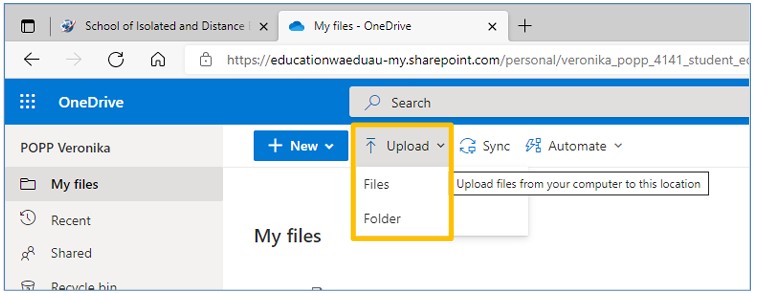
* Files = one or more documents of media items, including a zipped folder
* Folder = a folder that is not zipped. Will upload all folder contents 6. Select the item or items you wish to upload and click Open:
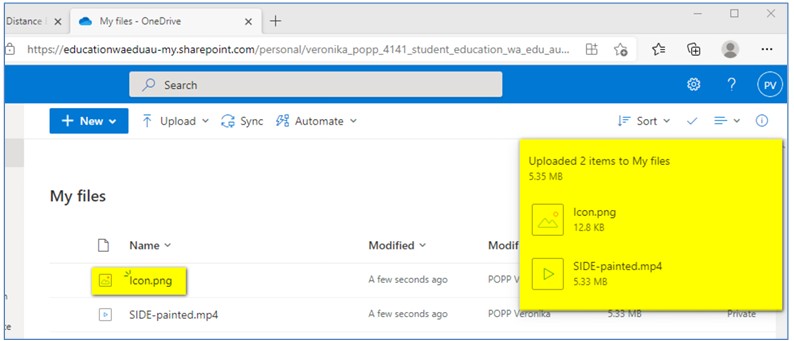
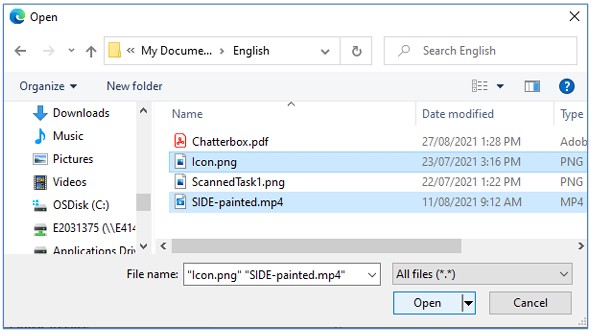 You will receive a notification when your items have uploaded successfully and recently added items will be indicated with three lines:
Creating new document in OneDrive
It is possible to create documents within OneDrive directly. To do this:
Click + New to reveal a drop down menu. Choose folder or the type of document you would like to create. This example will continue with a Word Document: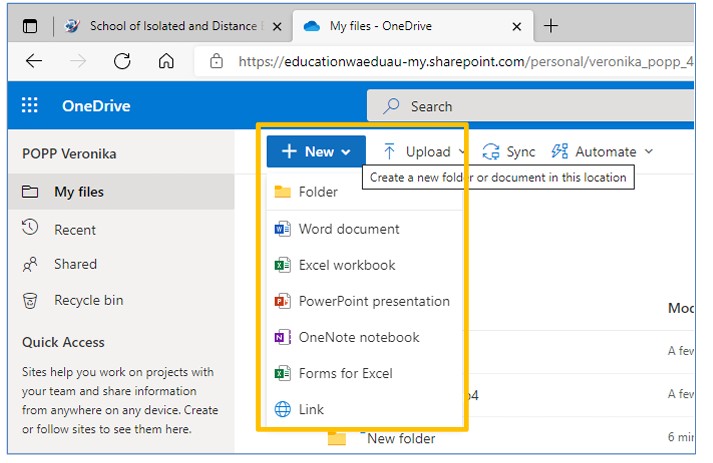 Create your document as usual. Your work will save automatically.
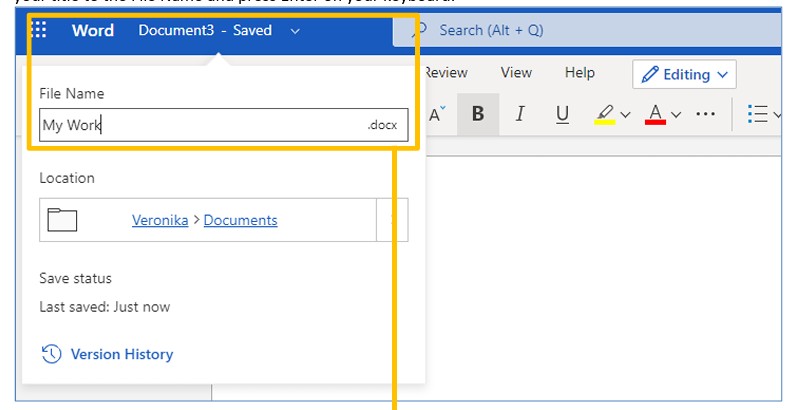
Give your document a title. Click on the temporary title given by OneDrive (in this case Document3). Add your title to the File Name and press Enter on your keyboard:
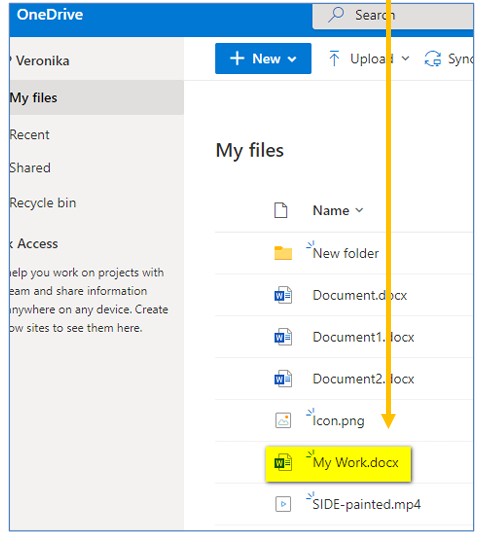
 Your document will be available in your OneDrive:
Sharing your work from OneDrive with your teacher
The great thing about saving your work in OneDrive, is that it is easy to share a link to your document for media file with your teacher. If you are working on a task, they can then see your progress. It is important to note however, that most of your SIDE work will need to be submitted via Moodle. Talk to your teacher if you are unsure.
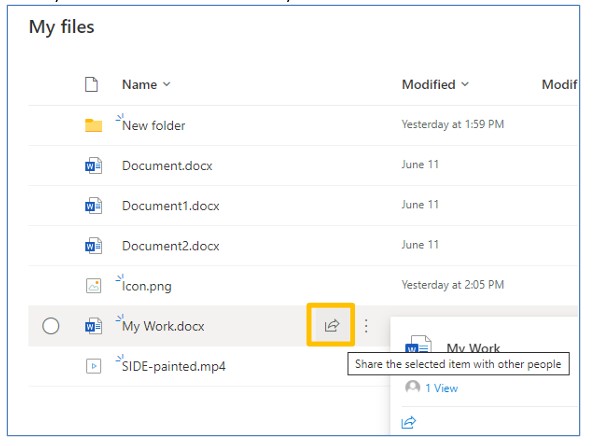
To share a link to your document: Hover your mouse over the document you would like to share. Click the Share icon:
 Click on the pencil icon to choose whether or not your teacher can only look at your work or look at your work and edit it. If you want feedback or they need to mark your work, you will probably need to let them edit:
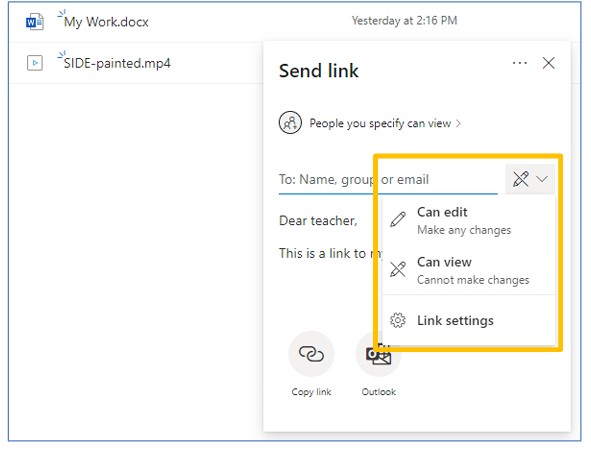
- Type your teachers email address into the To: field and press enter on your keyboard:
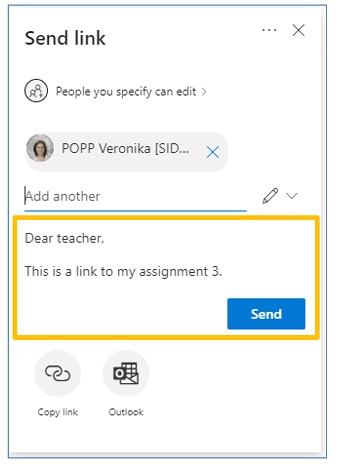
- Type a message to let your teacher know what you are sending them a link to. When you are ready, click the send button.
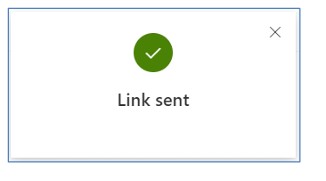
 You will get a little pop-up message to let you know that you have successfully sent your link:
 And your document status will change from private to shared.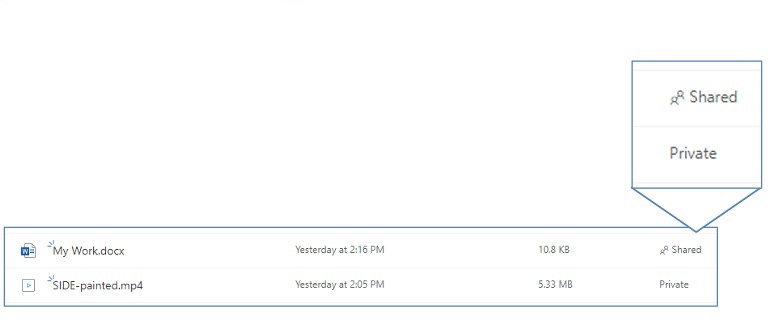
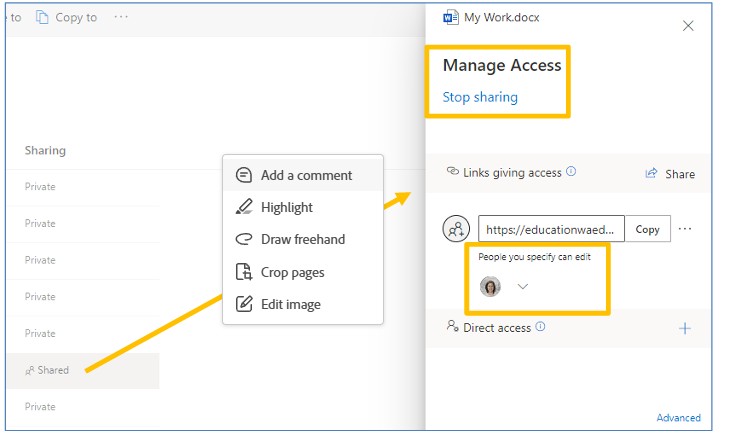
Click on Shared to view who you have shared the document with and also to stop sharing it:
Set up OneDrive on a mobile device
-
Open the App Store on your iPhone or iPad.
-
Search for OneDrive.
-
Tap Get to download and install the app.
-
Sign in to OneDrive
-
Open the OneDrive app.
-
Tap Sign in.
-
Enter your Microsoft account email and password.
-
Tap Sign in.
To learn more about using OneDrive on your iOS device, see Mobile and Mac for OneDrive.
-
Open the Google Play Store on your Android device.
-
Search for OneDrive.
-
Tap Install to download and install the app.
To learn more about using OneDrive on your Android device, see Mobile and Mac for OneDrive.
Sign into the OneDrive App on a mobile device
- From your iOS or Android device, open the OneDrive app.
- If you’ve never used the OneDrive app before, the Add Account screen starts automatically. If you’re already using OneDrive with a personal email address, tap the Settings, then Add account.
- Enter your school email address and tap the Next arrow.
More Information: Https://Support.Microsoft.Com/En-Us/Onedrive