
 |
Adobe Creative Cloud is available to all Victorian government primary staff, secondary staff and secondary students, providing access to a suite of creative digital tools that can be used across a range of teaching and learning areas to create content in range of mediums including photography, graphic design, video, audio and more. |
This guide will walk you through the steps to download and install Adobe Creative Cloud, so you can start creating, collaborating, and bringing your ideas to life in the classroom and beyond.
Download the Adobe Creative Cloud Installer
1. Open your web browser and go to: Adobe Creative Cloud
2. Click Download Creative Cloud
macOS: Creative_Cloud_Install.dmg
Windows: Creative_Cloud_Set-Up.exe
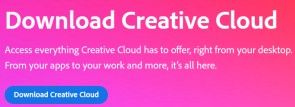
3. The installer will download to your computer (usually in your Downloads folder).
4. Follow the onscreen instructions to complete your installation.
Install Creative Cloud
1. Open the downloaded installer.
2. When prompted, enter your Department of Education email address. (e.g. XPZY@schools.vic.edu.au)
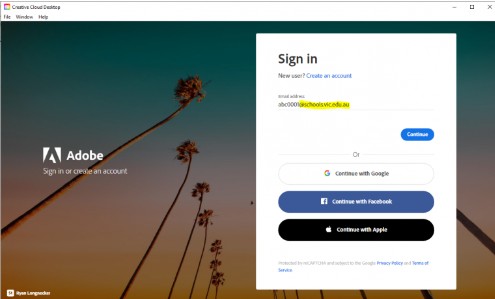
The installation may take several minutes – do not close the installer until finished.
Install Apps
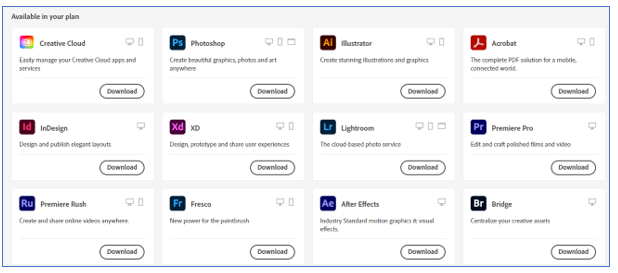
1. Once installation is finish, go to the Apps tab in Creative Cloud Desktop.
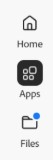
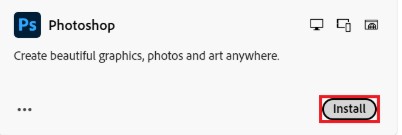
2. Find the app you want to install and select Install button next to it.
3. The installation may take several minutes – do not close the installer until finished.