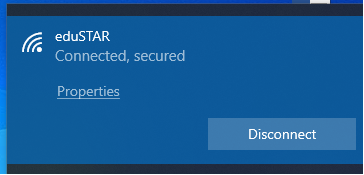
The following instructions show how to install Company Portal to access trusted resources at maribyrnong College  on a Windows Computer.
Before connecting your device, please note the following important information:
- You will need to have your school email address and password.
- Your school username is a special set of letters and sometimes numbers, e.g. jodoe3@school.vic.edu.au
- Your school password is reset each year.
*** If you do not know your login details, please see your teacher as they will be able to tell you***
- Download Microsoft Company Portal app for windows from Here
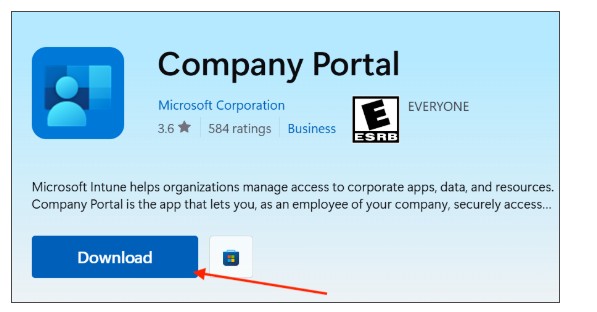
- Click the “Download” button in the microsoft Store for the company portal
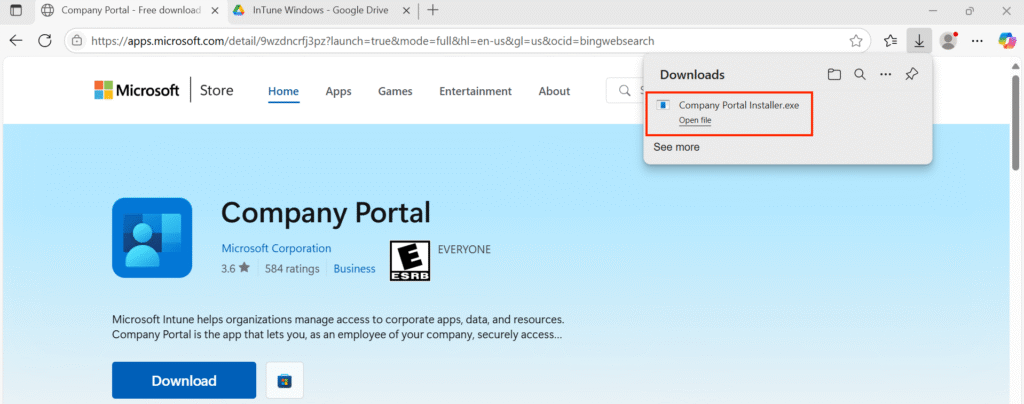
In the Downloads window, click “Company Portal Installer.exe” to open the installer.
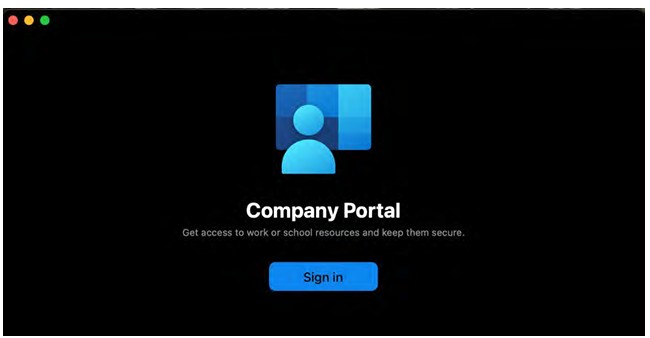
The Company Portal will open, and you will be asked to sign into Microsoft account. Use your school email and password to log in.

Once you’re logged in, you will get a prompt to allow microsoft to manage your device. Click “Yes to all apps” to continue.

At the college, click on the World or Network icon in the bottom right-hand corner of your taskbar then Click Wi-Fi icon.
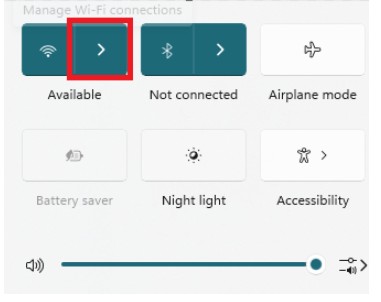
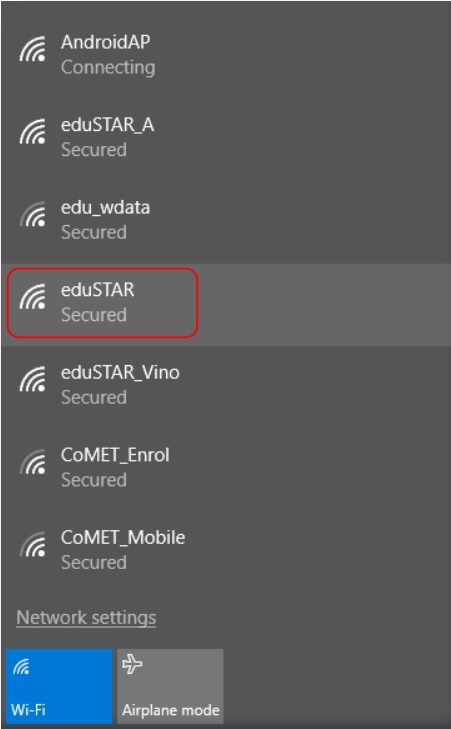
- select eduSTAR from the list of available Wi-Fi networks.
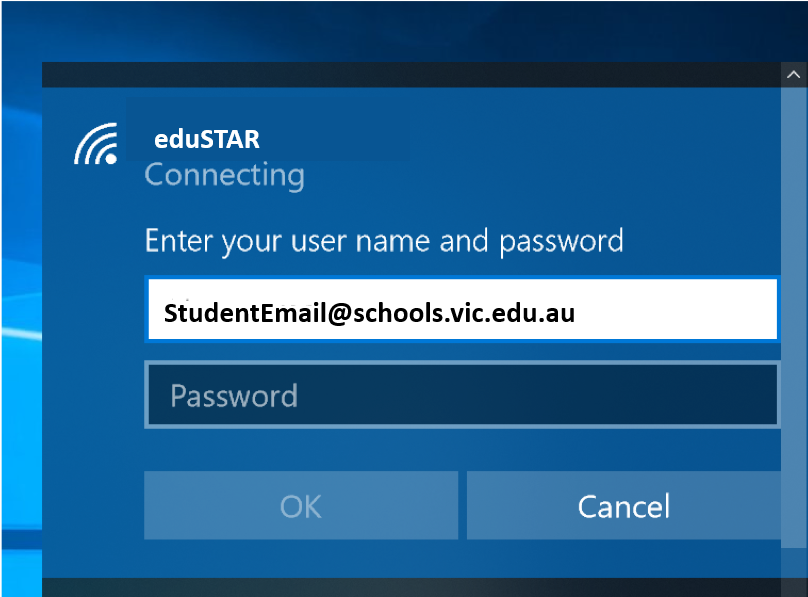
If you have asked, enter your school email address and school password.
You might be asked to select Continue if you trust the network or a certificate to connect
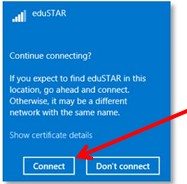
Allow or continue to finish the connection.