
What is browser cache?
Browsers use a process called caching to temporarily save website data. All modern web browsers maintain cached files for the sites you visit for an important reason – faster display of web pages when you revisit a page.
What is the problem?
Browser caching helps us access the content we want much faster, however, there are cases when you need to empty your cache. When your cached version of a file is out of date with the server’s the page may not display as intended. This is especially true during development or when a number of changes have been made to the site in a short space of time.
The good news is that it’s very easy to delete cached data on all major modern browsers. Understanding how to do this can save a lot of valuable time!
Force Refresh
If someone tells you to “force reload” your browser to fix an issue, use the following key combinations:
Windows: Ctrl + F5
Mac/Apple: Apple + R or command + R
Linux: F5
This will empty your cache for a single page and fixes most cache related visual bugs. However, if this doesn’t work, use the following instructions to empty your entire cache:
Chrome
- In the browser bar, enter: chrome://settings/clearBrowserData
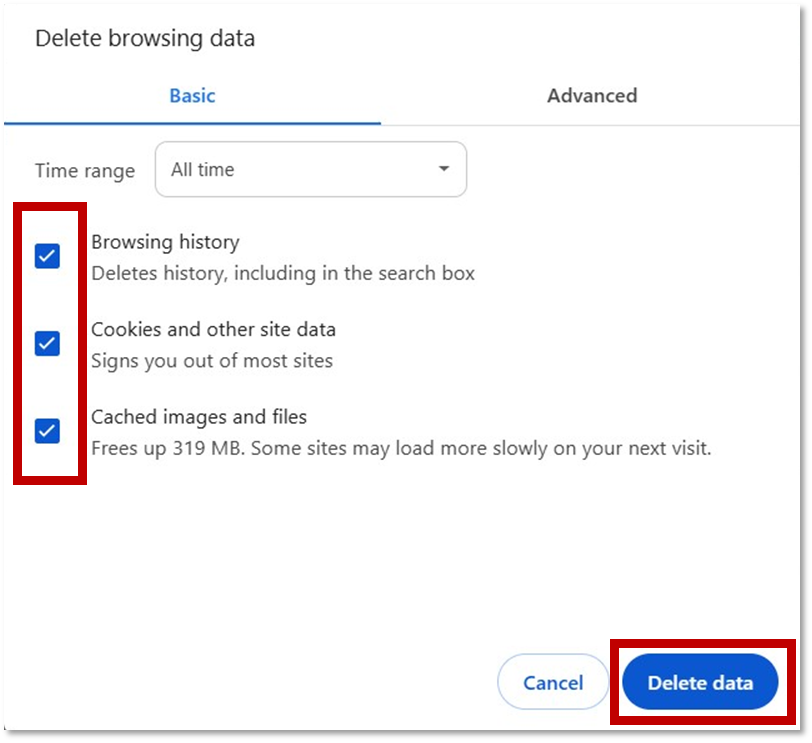
- Select cached images and files
- You can choose the period of time for which you want to clear cached information. To clear your entire cache, select the beginning of time.
- Click Clear browsing data.
- Refresh any pages you have open.
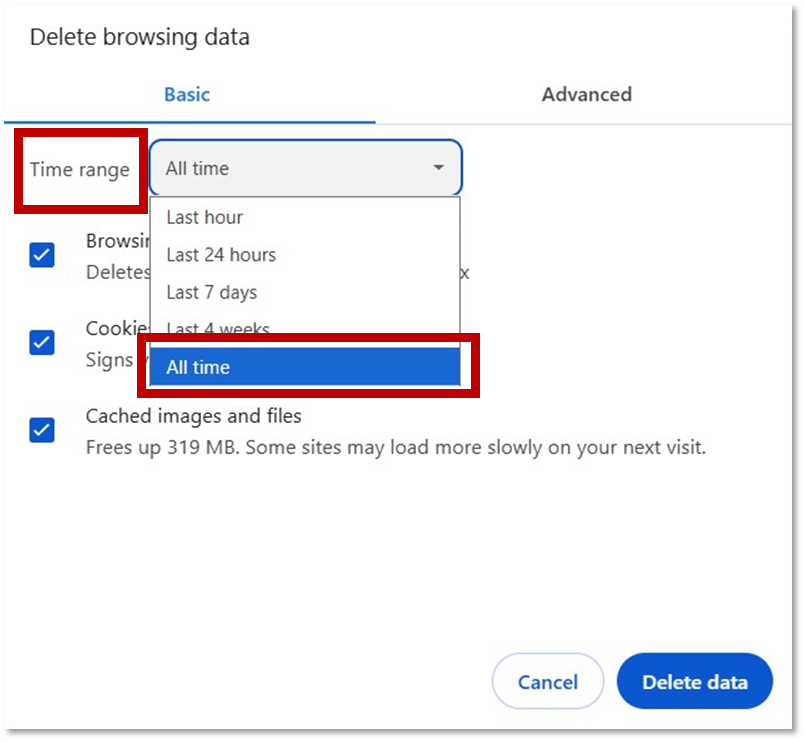
- Check all available boxes > select Delete data.
 Close and re-open your browser to refresh the changes and continue using.
How To Clear the Browser Cache in Safari
Safari also makes it easy to clear the browser cache:
- Open Safari.
- Select History > Clear History.
- Select how far you want to go back.
- Confirm through the popup
Depending on your version, you may have to use an alternative method:
- Select Safari > Preferences.
- Select the Advanced tab and check the box by Show Develop menu in menu bar.
- Navigate back to the menu bar on the top, and select Develop > Empty Caches.
How To Clear the Browser Cache in Firefox
- From the History menu, select Clear Recent History.
- If the menu bar is hidden, press Alt to make it visible.
- From the Time range to clear: drop-down menu, select the desired range; to clear your entire cache, select Everything.
- Next to “Details”, click the down arrow to choose which elements of the history to clear.
- Click Clear Now.
- Refresh any pages you have open.
How To Clear the Browser Cache in Microsoft Edge
Microsoft Edge
- In the top right, click the Hub icon (looks like three horizontal lines).
- Select Cached data and files.
- Click Clear.
- After the “All Clear!” message appears, refresh any pages you have open.
As Edge is based on Chrome, you can also use Ctrl+Shift+Del to access the Clear Browsing Data settings.
Load the Latest Pages
Cache controls are pretty good at making sure you see the latest version of pages. But, as you have seen, the system isn’t perfect.
If you know, or suspect, you’re not getting the latest news, clearing the cache forces the browser to load the newest version of the page.
You can do that manually too with a keyboard shortcut:
- Windows – Ctrl+Shift+R or Ctrl+F5
- Mac – Cmd+Shift+R or Shift+C
This doesn’t clear the cache, it forces the browser to reload the page you’re currently on.
Troubleshooting alternatives
You may need to clear your cache for troubleshooting purposes but aren’t prepared to lose the data. If that’s the case you can open a private or ‘incognito’ browser window.